Assessment - External examiner

At NMBU two different systems are used for registration of marking.
If the students completed and/or submitted the assessment in the WISEflow exam system, the marking must also be registered in this system. In all other cases Fagpersonweb is used.
Log in
Log in to Fagpersonweb
External examiners must log in using the ID port (Bank-ID) if they have a Norwegian national identity number, otherwise their NMBU Feide log in.
If you have forgotten the username or password for your NMBU’s Feide-account, please contact IT support (it@nmbu.no, tel. 0047 67 23 05 55, working hours: 8 am to 3 pm Norwegian time).
- Log in to Fagpersonweb
Log in to WISEflow
External examiners must log in using the ID port (Bank-ID) if they have a Norwegian national identity number, otherwise their NMBU Feide log in.
If you have forgotten the username or password for your NMBU’s Feide-account, please contact IT support (it@nmbu.no, tel. 0048 67 23 05 55, working hours: 8 am to 3 pm Norwegian time).
- Log in to WISEflow
Assessment in Fagpersonweb
1. Choose language to the top right
2. Pick “grading” from the top menu and select the right the course you want to grade. Be aware of the semester filter on to the right.
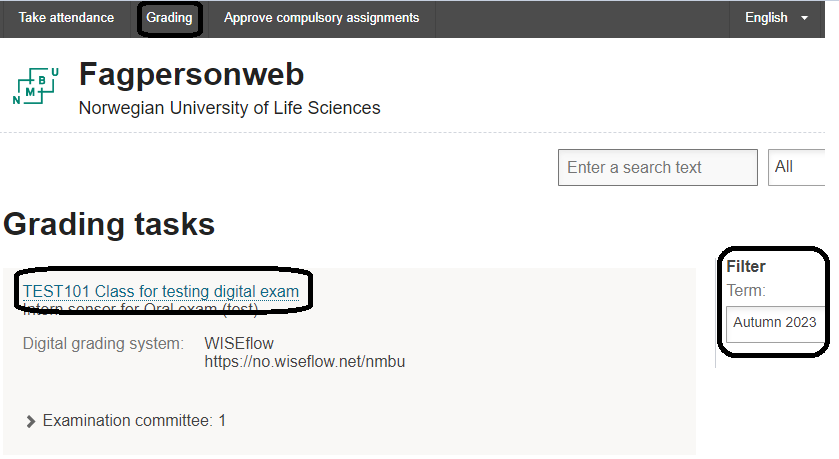
Screenshot from Fagpersonweb: Pick grading and select the right course 3. Assess by
- Set grade by manually enter per candidate in the candidate list
- Import results by pressing "Show grade import". download excel template for filling and import again
4. Choose "sign and transfer"
Comments are for your own use and can be shared with fellow examiners. Comments can not be shared with the students
One examiner can register marks on behalf of the whole commission (group of co-examiners), but co-examiners must still sign and approve the marks.
When in doubt or where there are any errors please contact sensur@nmbu.no (please include the course code).
Assessment in WISEflow
For å gjennomføre sensur i WISEflow skal man overordnet gjøre følgende innen vurderingsperiodens slutt (sensurfrist):
- Les besvarelser
- Registrer karakterer
- Send inn karakterer
Navigation
Overview in the Assessor Tab
When you go to the assessor tab, you get an overview of all flows you are associated with:
- Proceed to the individual flow.
- Go to the overview of Re-marking or Grade justification.
- View old flows in the Assessor Archive. A flow is automatically archived one month after the end of the assessment period, provided there are no unanswered requests for justification.

Oversiktsbilde fra WISEflow The Marking Flow Page
Once you have selected a flow, you will arrive at the flow page. This page provides an overview of the flow as a whole
- Open Marking Instructions and Flow information to see information such as contact info for co-assessors, assignment sets, and any assessment guidelines.
- The Offline marking function can be used to export submissions to a file. It may also include a template for grade registration in Excel format that can be filled out and uploaded instead of registering grades within WISEflow.
- The timeline reflects the assessment period, where the end date and time is the grading deadline.
- Select Start marking / Continue marking to enter the assessor tool where you can view the submissions.
- Open the text similarity report if available.
- The columns reflect the grade status for each individual candidate. The grade becomes visible in the "Grade entered" column when registered, in the "Waiting for grade" column when you (but not the co-assessor) have submitted the grade, and finally in the "Submitted assessment" column when all assessors have submitted the (same) grade—it is then finalized.
- In the overview at the bottom, you can choose to go to a specific candidate's submission or register the grade directly.
- If the grades are only registered and you are finished, you can choose to submit all.

Flowens vurderingsperiode The Assessor Tool
Inside the assessor tool, you can read submissions, write feedback, register grades, and any justifications.
- The left margin is the navigation for the flow as a whole; here you can open a list of all candidates or write common feedback to be given to everyone.
- This usually shows the candidate number or name. Click to see details about the candidate and co-assessor.
- Submission opens a side panel with the content of the submission. If there are attachments, they will be shown here.
- In the Feedback side panel, general feedback (comments) for the submission as a whole can be created.
- The grade is registered in Grade.
- If there is a request for a justification, it will be visible in Grade Justification. It is also possible to write a justification in advance, so the candidate does not have to request it first.
- In addition to general feedback, it is also possible to share remarks. These will appear here if annotations are made in the text (highlighting, underlining, etc.).

Sensorverktøyet Grade Converter (FLOWmulti)
In FLOWmulti, it is possible to use a grade converter to determine which threshold values (points) correspond to which grades, and then register this for everyone in one operation.
The grade converter is found on the flow page:
- Select the Personal setup > Grade scaling (from scores) button and adjust the threshold values.
- Then register the grades with the Use calculated grades button (this can be done multiple times until the grades are submitted).

Karakteromregning Hover the pointer over a column to see the number of candidates falling within a given value. The boundary indicates the lowest score to receive the grade to the right.

Karakteromregner (FLOWmulti)
Blank answer or "not met"
- If the student has submitted a blank answer, the mark must be F/no pass.
- If the student has not submitted an answer, the Department of Academic Affairs will register “not met”.
Incorrect assessment
If you, after pressing the button for “Submit all”, see an error in the assessment you must contact the Department of Academic Affairs (sensur@nmbu.no) as soon as possible.
Any questions?
Technical support: wiseflow@nmbu.no
Questions about assessment: sensur@nmbu.noAssessment of degree thesis
The degree thesis consists of two parts where a result must be registered.
The parts:
1. The written assignment (assessment of the written assignment only)
2. Final result (the grade on the diploma that counts for 100% of the degree thesis).Overview
Go to the overview. Click on "Marking" in the menu on top in WISEflow.
In the overview, there will be 2 or 3 flows for each degree theses. Note that the flows have different headings but the same faculty's name below. The 3rd flow is to secure assignments that are confidential or have postponed publication.The student's name will only be visible in 1 of the 2 flows for the written assignment.

Screenshot from WISEflow: The overview Part 1: The written assignment
1. Choose the flow marked «Masteroppgave, Skriftlig oppgave»

Or the flow marked «Masteroppgave, Skriftlig oppgave, Konfidensiell / Utsatt publisering»

2. Register the assessment following the steps outlined under "Assessment in WISEflow" above.
The system will automatically ensure that the grade for part 1 of the written assignment is not published for the student until the oral presentation has been completed and the part 2 final grade has been registered in wiseflow.
Part 2: Final result (the grade on the diploma that counts for 100% of the degree thesis):
1. Click on the flow with the subtitle "Final grade"

2. Register the assessment following the steps outlined under "Assessment in WISEflow" above.
Incorrect assessment
If you, after pressing the button for “Submit all”, see an error in the assessment you must contact the Department of Academic Affairs (gradsoppgaver@nmbu.no) as soon as possible.
Any questions?
Technical support: wiseflow@nmbu.no
Questions about assessment: gradsoppgaver@nmbu.noIn cases of suspected cheating or plagiarism
In cases of suspected irregularities or cheating/plagiarism in student work under assessment, the internal examiner and the faculty administration must be contacted as soon as possible.
A brief report about the case should be written, explaining how the suspicion arose and the nature of the issue, and relevant documentation should be attached. The report must then be forwarded to the administration. All instances of detected copying must be documented, and the student's submission, along with copies of literature, websites, or similar sources, should be included in the case file.
It is crucial not to suggest that the student may have copied from sources unless this is thoroughly documented. The report must not include accusations that cannot be substantiated in a proper manner.
Appeal about a given grade
The student's deadline for an appeal about a grade is 3 weeks after the publication of the grade. Students appeal in StudentWeb. If the student requests an explanation, the appeal deadline will be adjusted according to when the explanation is given.
If a student appeals their grade, the appeal grading must be conducted without undue delay. The deadline will therefore be individual for each student. In the event of delays, the faculty must inform the student.
It is the faculty that ensures that appeal examiners have access to students’ paper, assignment, and written guidelines.
The student can choose to withdraw the appeal before a new grade has been announced. Complaint examiners will in such cases lose access to register a new grade.
Notification
The appeal examiners will receive an e-mail within 24 hours after a new appeal about grade has been received. This contains an overview of the courses with new appeals and a link to the system where the new grade is to be registered. The same e-mail will also be sent as a reminder one day before the deadline for assessment if the appeal has not been processed yet.
The process
- Grades are published in StudentWeb.
- The student appeals about the grade in StudentWeb within three weeks after the grade or explanation is published.
- Complaint examiners receives e-mail within one day.
- Complaint examiners register a new grade in Fagpersonweb or WISEflow
- Exceptions - see section Appeal about a given grade (bachelor's and Master's thesis)
- If the new grade is a discrepancy of two grades or more from the ordinary grade, the faculty will follow up with a manual procedure.
- The student receives notification that a new grade is available in StudentWeb
- The student can choose to request explanation for the new grade, but must then contact the faculty directly (manual procedure).
User guide for reassessment in Fagpersonweb
- After receiving a notification about reassessment after appeals, the faculty will provide examination papers and guidelines for examiners. Follow the link in the e-mail or go directly to Fagpersonweb.
- Unfinished reassessment will appear as notifications on the front page. They are also available in the overview of grading tasks by the Grading-tab.
- Reassessment is otherwise conducted as ordinary assessment - Assessment in Fagpersonweb.
User guide for reassessment in WISEflow

Screenshow from WISEflow: Go to Re-marking overview - 1. After receiving a notification about reassessment after appeals, follow the link in the e-mail or go directly to WISEflow. The overview of tasks is also available with the Marking-tab and the «Re-marking»-button:
- 2. Note that the deadline is individual per appeal.
- 3. Reassessment is otherwise conducted as ordinary assessment - see Assessment in WISEflow.
Appeal about a given grade (bachelor’s or master’s thesis)
Appeals about a given grade for a Bachelor thesis without an oral exam will be processed in WISEflow.
In some cases, the result of an appeal cannot be registered digitally. This applies to courses where grading is determined on the basis of both a written and oral exam, e.g. bachelor's and master's theses. In such cases, the student can only appeal the grade of the written thesis. In the event of an appeal about a given grade, the written thesis must be sent to new examiners. If the new grade awarded for the written thesis is changed to the favour/disfavour of the appellant, a new oral test adjustment must be held to determine the final grade.
The Process
- After receiving a notification about reassessment after appeals, follow the link in the e-mail or go directly to the written thesis in WISEflow.
- New assessment for the written assignment is sent from the internal examiner with the external examiner in Cc to the study supervisor by e-mail.
- The study supervisor sends an e-mail with instructions on further processing of the appeal: If a new examination of the written assignment does not result in a new result, the appeal is closed and the grade can be registered in WISEflow. The user guide is in "Appeal about a Given grade" under "User guide for reassessment in WISEflow". If a new examination of the written work results in a new result, a new oral presentation must be held.
- New assessment for the master's thesis final grade after the oral presentation is sent to the study supervisor by e-mail from the internal examiner with the external examiner in CC for registration.
Examiner's remuneration report
The faculties at NMBU have different procedures for collecting an examiner's remuneration report. It is thus important that you relate to procedure at the faculty which you have had an examination assignment for. If you choose the wrong form or send it to the wrong e-mail address, it can lead to rejection of the form/claim.
Biosciences (BIOVIT)
Internal examiner/course responsible must complete a form for the external examiner to get paid. Completing the form confirms that the remuneration work has been carried out and that the hours are correct.
For questions please contact Økonomi BIOVIT at okonomi-biovit@nmbu.no or eksamen-biovit@nmbu.no
School of Economics and Business (HH)
The external examiner/sensor has to fill in and sign the payment form to to get their payment. This is how it works - the external examiner/sensor:
- Fills in the attached form, with DIGITAL SIGNATURE via Adobe. Examine fee form at HH
- Sends the form to an internal examiner who also signs DIGITAL, and sends the form in return.
- Goes to the web form.
- Under the question "Select the type of form the collection applies to" selects EXAMINER FEES.
- Fills in the online form with information.
- In the last part of the web form, uploads the signed examiner fee form.
Chemistry, Biotechnology and Food Science (KBM)
Internal examiner must register a form for the external examiner to get paid.
Landscape and Society (LANDSAM)
Payment of fees and any travel expenses:
Environmental Sciences and Natural Resource Management (MINA)
Please contact the faculty
Science and Technology (REALTEK)
For external examiners/sensors to get their payment, the examiner needs to fill in and sign the payment form. Online form for payment of remuneration to external examiners: https://nettskjema.no/a/381823
Completing the form for payment of remuneration confirms that the information provided has been carried out and that the hours are correct. Information about weighting:
Control and approval of evaluation of program / exam papers
- Basic fee - 3 hours per course
Oral examination
- Ordinary exam basic fee 3 hours + per candidate 1 hour
- Special syllabus per candidate 3 hours
Written examination
Ordinary exam and appeals
- Basic fee - 3 hours
- Exam length up to 2 hours - 0.5 hour per student
- Exam length 3 - 4 hours - 0.75 hours per student
- Exam length 5 - 7 hours - 1.0 hour per student
- Exam length 8 hours and over - 1.25 hours per student
Degree thesis - including oral defense of the thesis
- Bachelor thesis - 5 hours per thesis
- Master's thesis 30 credits - 10 hours per thesis
- Master's thesis 60 credits - 15 hours per thesis
Collaboration between 2 or more students:
- Bachelor thesis, collaboration - 8 hours per thesis
- Master's thesis 30 credits, collaboration - 15 hours per thesis
- Master's thesis 60 credits, collaboration - 25 hours per thesis
Reports/semester assignment/portfolio evaluations
- Basic fee - 3 hours per course
- Number of pages - 15 pluss - 1 hour per student
- Number of pages - 25 pluss - 2 hours per student
- Number of pages - 50 pluss - 3 hours per student
Veterinary Medicine (VET)
Please contact the faculty
Legislation
Act relating to universities and university colleges and Academic regulations for NMBU